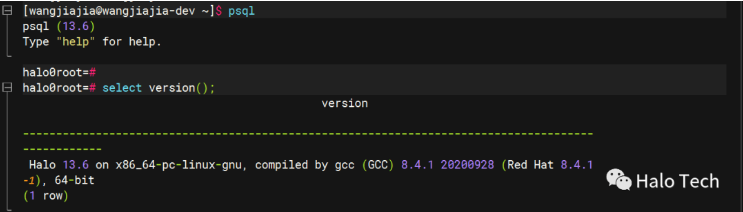
This article details the compatible platforms and installation process of the Halo database.
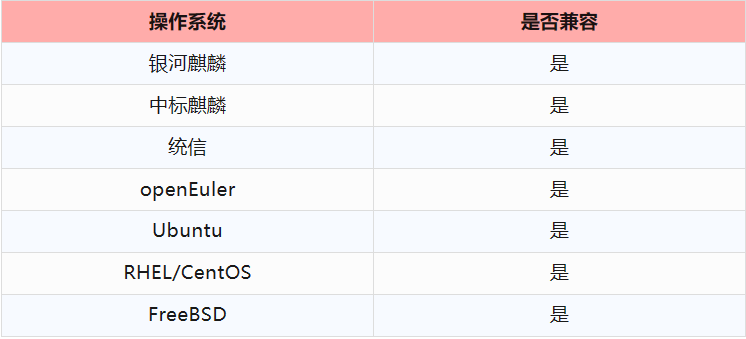
Halo database is compatible with multiple CPU platforms, meeting various different needs.
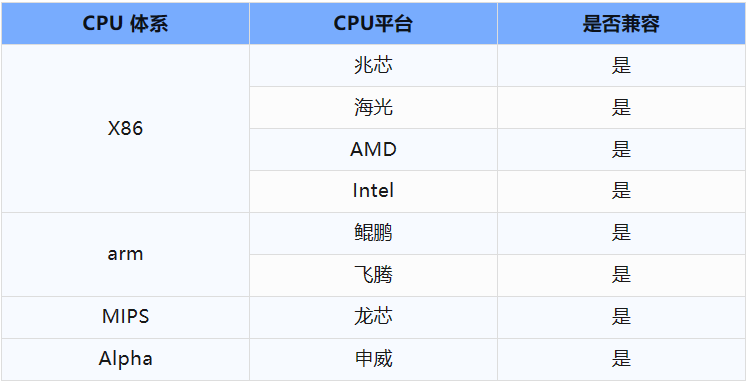
Halo database is compatible with multiple mainstream storage operating systems, meeting various different needs.
Halo database requires some additional system packages to support its operation. We use the yum command to install:
yum install -y sysstat ftp make cmake gcc uuid uuid-devel bison flex perl perl-devel python-devel readline readline-devel libxml2
yum install -y libxml2-devel iotop tcpdump strace gdb systemtap net-tools xdpyinfo libstdc++-devel gcc-c++
yum install -y ksh uuid-devel libaio libaio-devel libX11 libXau libXi libXtst libXrender libXrender-devel libgcc libstdc++ libstdc++-devel
yum install -y libxcb make smartmontools zlib-devel tcl glibc glibc-devel openssl openssl-devel bc binutils
yum install -y nfs-utils perl-ExtUtils-Embed  zstd zstd-devel libcurl libcurl-devel libicul ibicu-devel lz4  lz4-devel
With these dependency packages, let's get started!
1. Users and Groups
group add -g 1000 halo
useradd -u 1000 -g halo halo
2. Installation Directory
mkdir -p /u01/app/halo
chown -R halo:halo /u01/app/halo
3. Installation Execution
a. Extract the software package to the installation directory
Upload the prepared database software package to the system's halo user directory (choose the database version file according to the server system) /home/halo.
tar zxf <package_name> -C /u01/app/halo/b. Install the License file to the installation directory
Copy the License file, named license.lic, to the database root directory /u01/app/halo/product/dbms/13
mv license.lic /u01/app/halo/product/dbms/13c. Environment Configuration, add halo to program runtime path
Add the following lines to the end of /home/halo/.bash_profile
vi /home/halo/.bash_profile
export HALO_HOME=/u01/app/halo/product/dbms/13
export LD_LIBRARY_PATH=$HALO_HOME/lib
export PGHOST=/var/run/halo
export PATH=$HALO_HOME/bin:$PATH
# Run the edited script
source /home/halo/.bash_profile
Installation complete, test if the installation is correct:
pg_ctl -V
pg_ctl (Halo) 13.6
If the version number is correctly output, the installation is normal. Otherwise, please carefully check the installation steps.
4. Create Database Process Directory
Halo database needs an additional path to store temporary process files. The default path is: /var/run/halo. This default path does not exist by default during installation and needs to be created manually:
mkdir /var/run/halo
chown halo:halo /var/run/halo
Add the following lines at the end of /etc/rc.d/rc.local
vi /etc/rc.d/rc.local
/usr/bin/mkdir /var/run/halo
/usr/bin/chown halo:halo /var/run/halo
# Grant execute permission to /etc/rc.d/rc.local
chmod +x /etc/rc.d/rc.local
5. Adjust Memory and Semaphore Parameters
# Login as root
cat /proc/sys/kernel/sem
# Ensure each output parameter is greater than or equal to the following typical settings
4096 4194304 32768 1024
# If any item is not satisfied, add the following lines at the end of the sysctl.conf file, and adjust parameters to meet typical settings
vi /etc/sysctl.conf
kernel.sem = 4096 4194304 32768 1024
# Apply changes
sysctl -p
# Check again and ensure each output parameter is greater than or equal to typical settings
cat /proc/sys/kernel/sem
6. Adjust Resource Limit Parameters
# Login as halo
ulimit -a|egrep "core|processes|open|stack|locked"
# Ensure each output parameter is greater than or equal to the following typical settings
core file size          (blocks, -c) unlimited
max locked memory       (kbytes, -l) unlimited
open files                        (-n)  1024000
stack size               (kbytes, -s) unlimited
max user processes               (-u) unlimited
If any item is not satisfied, add corresponding lines at the end of limits.conf
# Login as root
vi /etc/security/limits.conf
#core file size:
halo             soft   core         unlimited
halo             hard   core         unlimited
#max locked memory:
halo             soft   memlock      unlimited
halo             hard   memlock      unlimited
#open files:
halo             soft   nofile       1024000
halo             hard   nofile       1024000
#stack size:
halo             soft   stack        unlimited
halo             hard   stack        unlimited
#max user processes:
halo             soft   nproc        unlimited
halo             hard   nproc        unlimited
# Re-login as halo

# Check again and ensure each output parameter is greater than or equal to typical settings
ulimit -a|egrep "core|processes|open|stack|locked"
7. Create Database and Initialize
# Login as root
pg_ctl init -D /data/halo --database initialization
pg_ctl start -D /data/halo
# Login as halo
pg_ctl init -D /data/halo --database initialization
8. Database Startup Usually, we use the pg_ctl command to start the database instance, for example:
pg_ctl start -D /data/haloOnce the system starts up normally, we can connect to the database instance.